
In This Chapter:
Mark my words, this is the most important chapter in this book. If you don’t understand the Open and Save dialog boxes, the doohickies that appear when you choose File>>Open or File>>Save in most programs, you’ll never quite master your Macintosh. Yet mastering these essential techniques is perhaps the biggest problem many users have. I get more phone calls that begin, "Well, I saved the file, and now I don’t know where it went."
This chapter is the cure. Just pay attention and it’ll become crystal clear. And keep saying to yourself, "The Save and Open dialog boxes are just another view of the Finder." I’ll explain in a moment.
Never mind. They’re not that bad. And after you figure out how they work, you’ll never forget it. It will soon become second nature to you, and you’ll cruise through Open and Save dialog boxes just like the pros, barely thinking about them as your fingers type and click at high speeds.
Before we get started, I need to remind you that you work with Open and Save dialog boxes within applications. I assume that you know how to launch your favorite application and that you know how to create a new document. If you can’t do these things, I recommend that you read Poguecello’s Macs For Dummies. This book has section on getting the beginning user started with popular Mac programs.
For the rest of this chapter, I’m going to use SimpleText as the sample application. SimpleText comes with System 7.5, so you should have it too. In fact, you’ve probably already used SimpleText to read any Read Me files that came with System 7.5.
So if you want to follow along, keystroke by keystroke, launch SimpleText and use FileêNew to create a new document. Type a few words in your document like: "Let us go then, you and I, when the evening is spread out against the sky like a Macintosh sitting on a table." Or something like that (forgive me, T.S. Eliot).
Switch from SimpleText to the Finder (you remember how). You may find the next part easier if you hide SimpleText (you know how to do that, too!) while you work in the Finder. If you’ve forgotten how to do either, pull down the Application menu, the one at the far right; everything you need is right there.
You should now have a set of nested folders that looks something like Figure 5-1.
Let me make this perfectly clear: Stuff inside Folder 3 is four levels deep. Folder 3 itself is three levels deep. Folder 2 itself is two levels deep, but stuff inside Folder 2, such as Folder 3, is three levels deep. And so on. Got it?
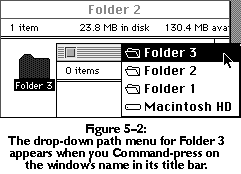
What’s important here is that you are able to visualize the path to Folder 3. To get to Folder 3, you open Macintosh HD, open Folder 1, open Folder 2, and then open Folder 3. Remember this concept. You’ll need it in a moment when you look at the Save dialog box.
OK, our preparatory work in the Finder is through. Use any of the techniques you know to make SimpleText the active application. And don’t forget what that path to Folder 3 looked like.
Copyright © 1994-1996 Quadralay Corporation. All rights reserved.
